
Sign in to TableSync
Open TableSync in your browser and sign in with your CCM account. The server checks the access attached to it.
The TableSync workflow
Sign in to TableSync in your browser, set a virtual balance, build or load a layout, follow the verified results and keep the useful context when you finish.
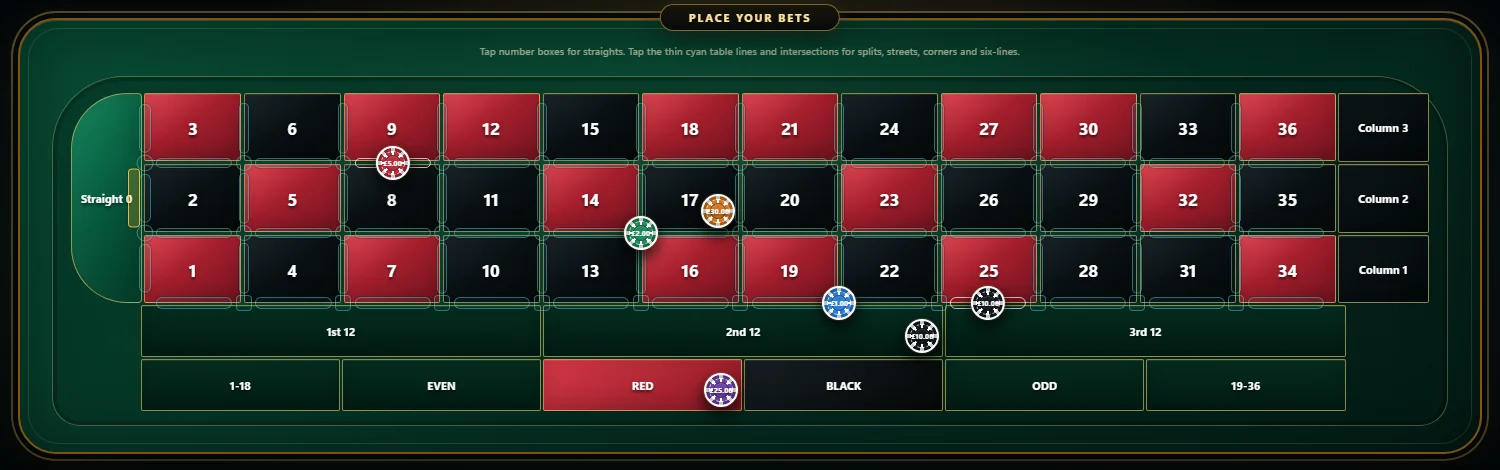
Open TableSync in your browser and sign in with your CCM account. The server checks the access attached to it.
Open the Immersive Roulette practice workflow and keep the European single-zero board in view.
Choose the practice balance and chip value you want to use before building the layout.
Build virtual placements directly on the board, reopen a saved Custom Bet, or hand your table to Auto Mode to repeat it with stop limits.
Follow verified results, virtual stake and balance. Each session is saved on your account.
Add notes, step through playback, export a CSV when needed and clear the table before the next run.
Keep the context
Add the reason for a practice run while it is still fresh instead of trying to reconstruct it later. Notes belong to the session on your account, next to playback and the CSV export.
Build repeatable ideas
Choose the kind of configuration you want to examine, review its settings and preview the exact board before saving it. Historical selectors describe the recorded window; they are not predictions of the next roulette result.
Choose the next view
The product page covers the full feature set; pricing shows which features are included with each annual-access plan.