
Begin with one goal
The main idea is to understand the warning and check the official file before continuing. Keep the first attempt small enough that you can explain what every click or number means.
You do not need a complicated system to learn this part of the product. Start from a known point, make one deliberate change and give yourself time to see the result.
Work through the steps
Use the official download route, compare the file details and keep the version number nearby. Clear setup information makes support much faster if something goes wrong.
For why windows smartscreen may appear during installation, use a short practice run and repeat the same opening steps. Repetition makes the controls easier to remember and makes later comparison more honest.
Read the screen carefully
Check the exact Windows message, the CCM Quantum version and whether the same account was used for checkout and sign-in.
If the screen no longer matches the session you intended to run, pause and reset. A clean restart is usually more valuable than trying to rescue a muddled practice run.
Avoid the usual trap
Disabling Windows protection or sharing passwords is not a sensible shortcut. Verify the file and ask for help instead.
Keep the language factual. Describe the placement, balance, selected history or product state you can see instead of turning it into a claim about a future random result.
Turn it into a repeatable habit
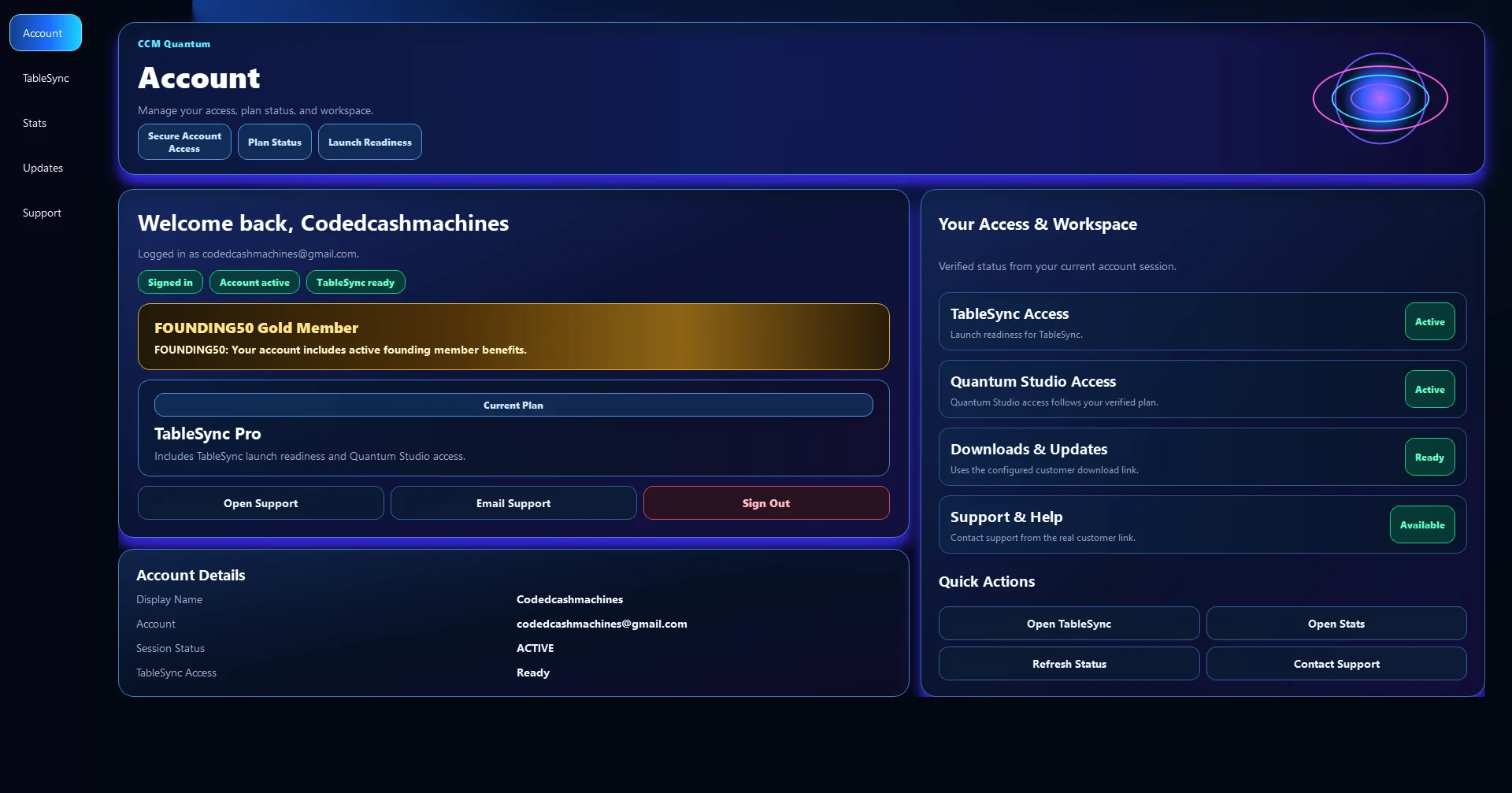
CCM Quantum handles sign-in, product access, setup, updates and launching TableSync from one Windows home.
Use this idea to understand the warning and check the official file before continuing, then finish with one sentence about what you would keep or change next time. That small review is what turns a click-through into useful practice.
TableSync helps you practise the workflow and review recorded information. It does not change roulette odds, place real bets or make the next random result certain.